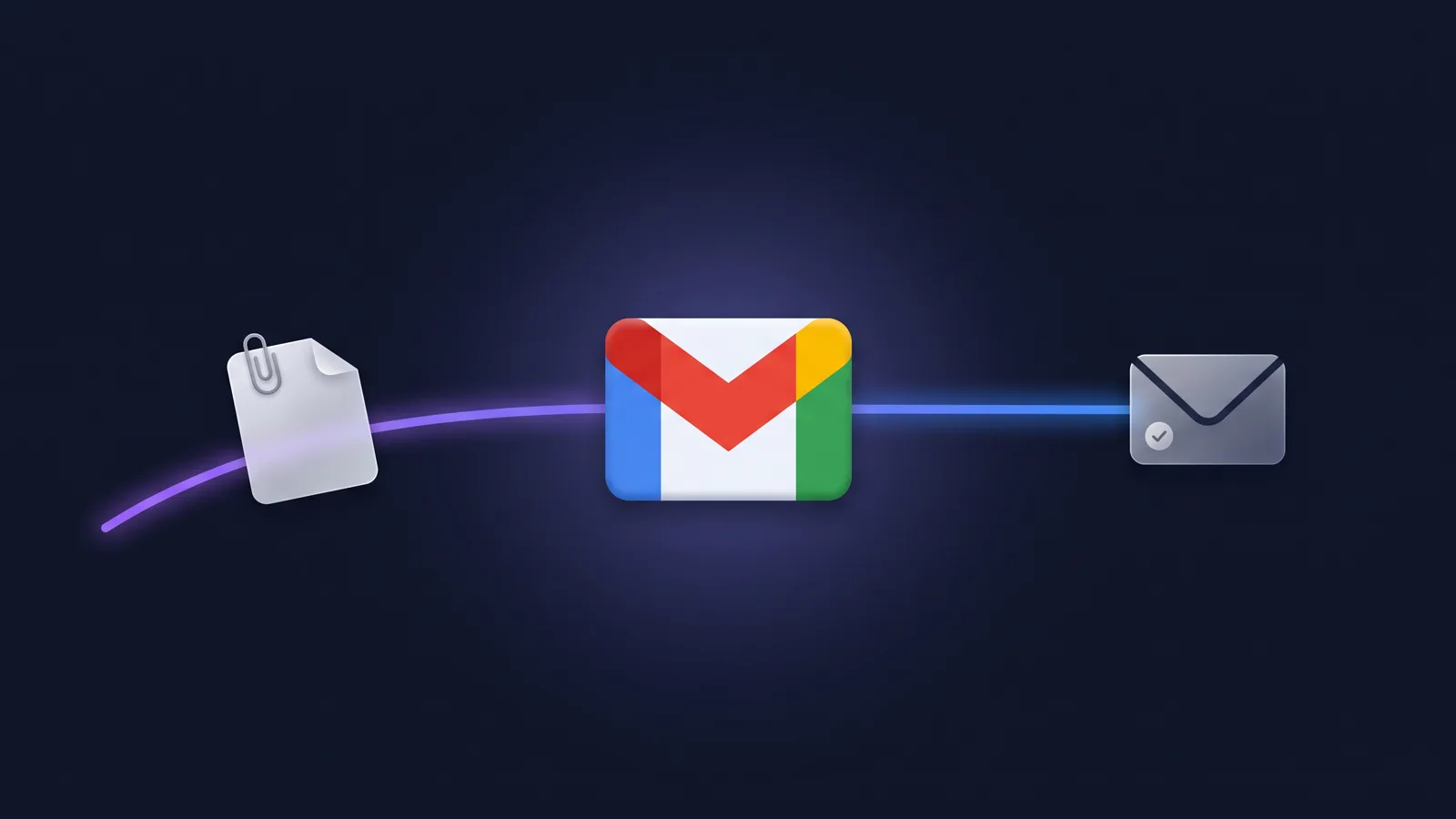
Say you share a PDF in chat and ask your clone to send it to a client. You want the file attached and the email sent once. Starting today, that's what happens.
We rebuilt your clone's Gmail operator. It has the same name and uses the same Google connection, and it still sends from the account you connected. You don't need to reconnect or change any settings. Two big things changed: attachments now work from start to finish, and each email your clone sends goes out exactly once.
23 tools, each tested in a real mailbox
The operator now has 23 tools, up from 11, and each one does a single job. We tested every tool live in a real Gmail mailbox before release. Those tests checked what the clone actually said and did, not just whether a call reported "success."
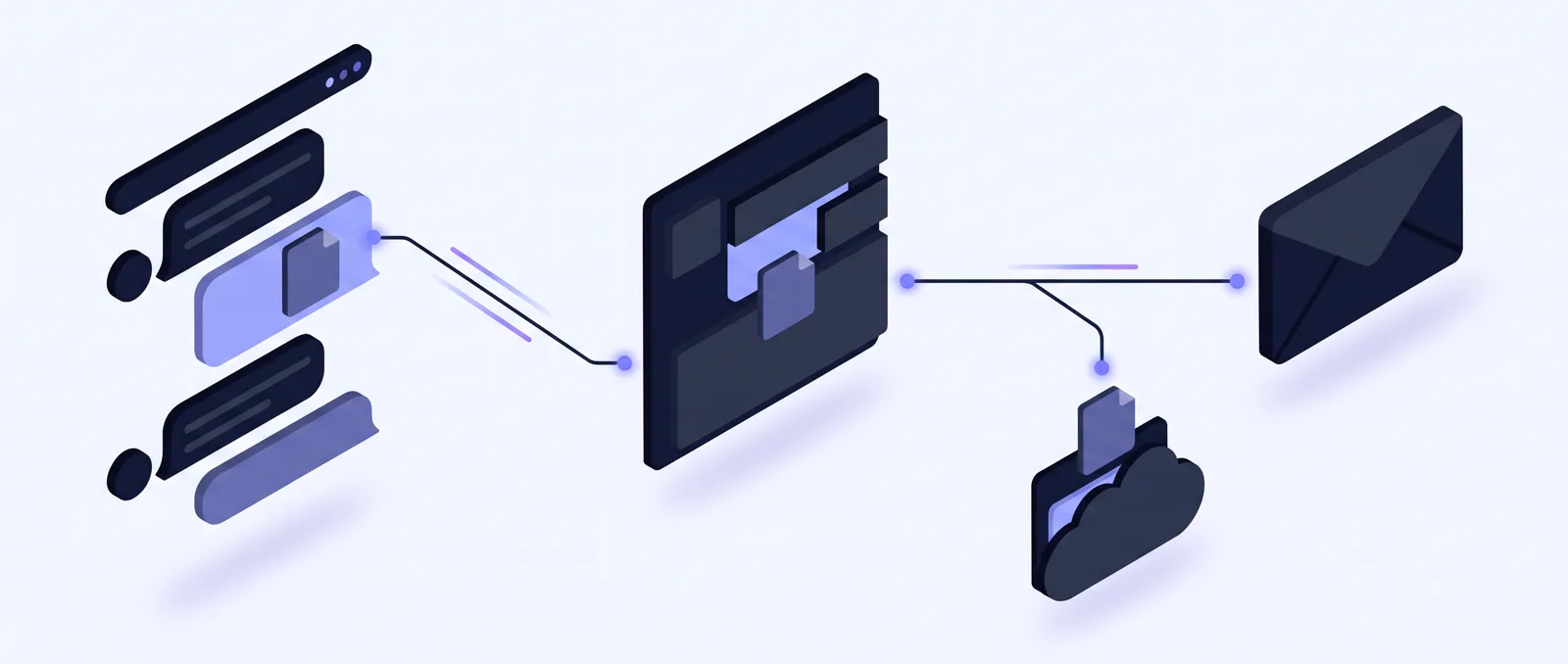
Attachments, start to finish
- Read them. Your clone opens the file in chat and reads it. This works for PDFs and Word files too.
- Attach files from chat. Share a file and ask your clone to attach it. If any file can't be read, the email isn't sent.
- Attach from Google Drive. Your clone attaches a copy. If the file is too big for email, it sends a Drive link instead.
- Save to Drive. We tested this with a 30 MB file and with emails attached to other emails.
- Forward with attachments. Forward them in the body or as an .eml file. Inline images and file names in other languages come through intact.
Sending, replies and drafts
- Each email sends once. Sometimes Gmail's reply gets lost and a send is tried again. Now the second try comes back "already sent," and your Sent folder holds one copy. If a send gets cut off, it picks up again from its draft.
- Replies stay in the thread. When you reply-all, your own address is left off the recipient list.
- Send-as addresses. Your clone can send from any address you've verified in Gmail's send-as settings. If Gmail hasn't verified an address, your clone doesn't create the email.
- HTML emails. An HTML file arrives byte for byte, exactly as written.
- Drafts. Your clone can draft replies and forwards, then send the draft. Editing a draft keeps its recipients, attachments and thread.
Finding and organizing mail
- Search by sender, label, unread, starred or date, with dates in your own time zone. Results come in pages with no gaps or repeats.
- Read threads without drafts or chat messages mixed in. Long emails are read all the way through.
- Summaries by sender or by day, covering up to a year of mail.
- Address lookup finds someone's email address in the last 180 days of your mail.
- Settings are read-only. Your clone can see your send-as addresses, signature and vacation status.
- Labels can be listed, created, renamed and deleted. Before a delete, your clone shows you what will change.
- Bulk changes let your clone mark as read, star, archive or move messages, picked by ID or by a search. Trash and restore ask you to confirm first.
Before and after
| Task | Before | Now |
|---|---|---|
| Reading attachments | Didn't work reliably | Opens the file in chat and reads it |
| Attaching a file from chat | Didn't work reliably | Attached. If any file can't be read, nothing is sent |
| Attaching from Google Drive | — | A copy, or a Drive link if the file is too big |
| Saving attachments to Drive | — | Saved, including large files and attached emails |
| Forwarding with attachments | Could repeat the body or drop images and the forwarded-message header | In the body or as .eml, with images and header intact |
| Repeated send | Could send the same email twice | Comes back "already sent," with one copy in Sent |
| Editing a draft | Could drop recipients, attachments or the thread | Keeps all three |
| Summaries by sender or day | — | New, covering up to a year of mail |
| Bulk changes | No count shown | Shows a count first |
| Emails that try to give orders | — | Treated as content |
What you may notice
- Before a bulk archive, move or trash, your clone tells you how many messages will change.
- If Google limits requests or has a server error, your clone tries again a few times. If it still fails, you get a clear error your clone can explain. It won't report a failure as a success.
- If an email tries to give your clone orders, your clone treats it as text to read, not instructions. In testing, the clone summarized that kind of email and didn't forward or trash anything.
- The operator only sends requests to Google's own services.
Left out on purpose
- Changing settings, such as vacation replies, filters, forwarding and signatures.
- Permanent delete. Use trash and restore instead.
- Other people's mailboxes.
- Scheduled send and undo send.
- Calendar work. The Google Calendar operator handles that.
Tips
- Share a file in chat and ask your clone to attach it to your reply.
- Ask, "Save the attachments from Dana's email to my Drive."
- Ask for a summary by sender: "Who emailed me most this week?"
- Check the count your clone shows before you approve a bulk archive or trash.
- For meetings and invites, use the Google Calendar operator.