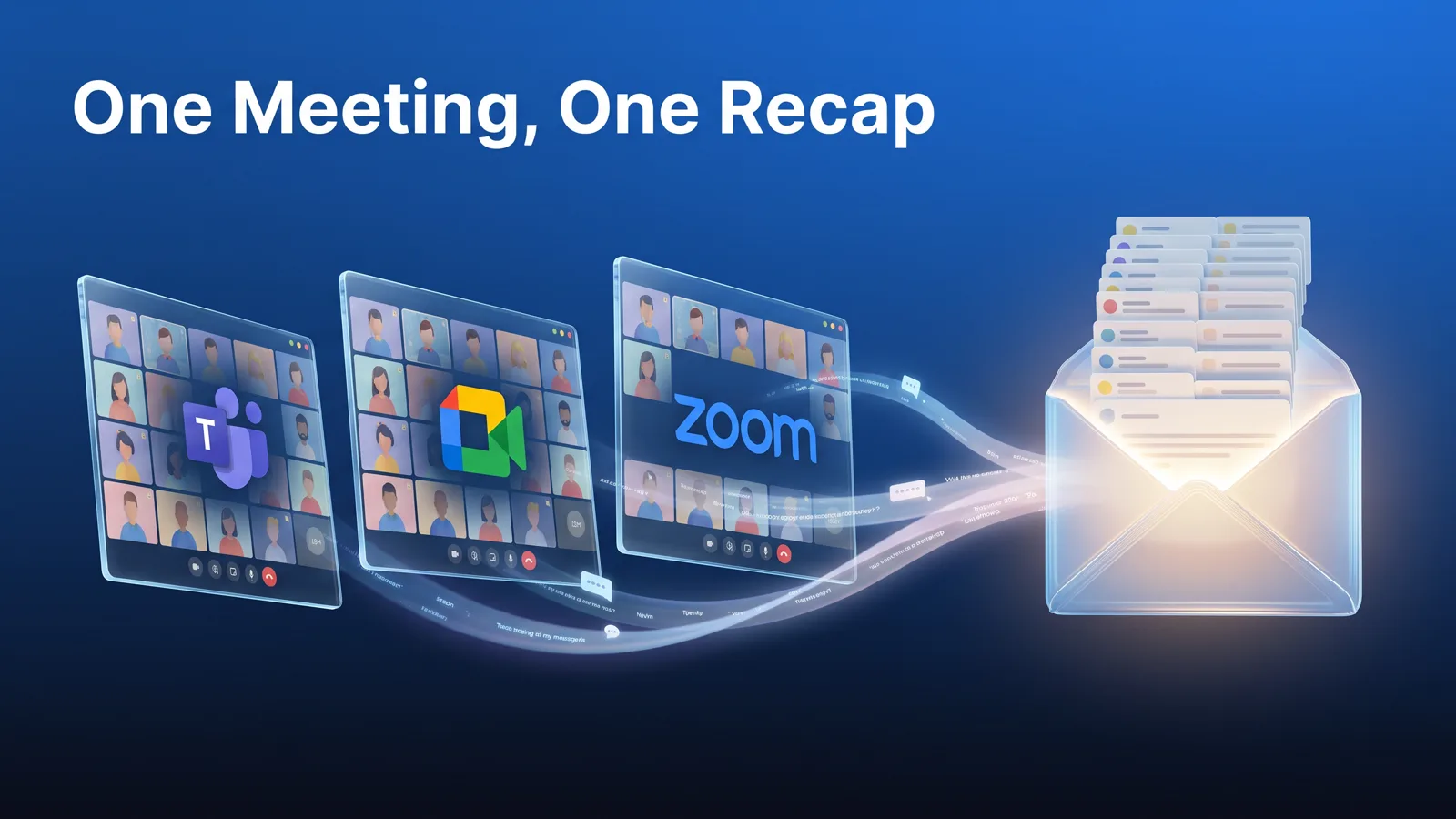
The call ends. Your guest gets a recap, your teammate gets one too, and you get a third. Each says roughly the same thing, in slightly different words, and each starts its own email thread. When the guest writes back, only your clone sees it. That's no longer how it works. Starting today, your clone sends one recap per meeting, to everyone, in one thread. This change is live for every organization.
What was going wrong
Recaps used to be written one person at a time. Each attendee got their own email, and the wording could differ from one copy to the next. Every copy started its own private thread. If a guest replied, your clone could answer them one-on-one, and nobody on your team would see the exchange.
Sometimes people were left out entirely. Someone whose own clone has access to their inbox could be mistaken for a clone and skipped. And the backup recap could miss people when the invite details didn't come from a verified calendar file.
One recap, everyone on the To: line
Now every meeting gets a single recap email:
- Everyone gets the same email, together on the To: line. Everyone can see who else got it.
- It's written for everyone on it, external guests included. Action items are grouped by owner.
- Your private notes stay private. Background, internal context and caveats never go in an email. They go to your meeting chat and your clone's knowledge base.
Who gets the recap
Recipients come from three places: the calendar invite, the people who were in the meeting, and anyone added during the meeting. Invitees who couldn't attend still get the recap. Nobody is added just because their name came up in the conversation.
A person is a person. If someone's own clone reads their inbox, they still get the recap.
Replies stay in one thread
Every reply comes back to the same thread, and your clone behaves the way a good teammate would on a group email:
- It stays quiet unless someone asks it something. A simple "thanks" gets no reply.
- If it answers, everyone on the recap sees it, even if the guest hit Reply instead of Reply all.
- It signs as your AI teammate, in the recap and in every reply. Never with your name.
- It remembers the recap it sent, so its replies match what it actually wrote.
Guardrails for big meetings and backups
More than 25 recipients? You approve it first. The recap waits, you get a notification, and you forward it from Archive. On a large call, like a supplier briefing, that keeps everyone's address from showing to everyone else.
Backup recaps go out together. If your clone missed people, they now get one shared email, not one each. Your clone also won't send a second recap to anyone it has already reached.

Before and after
| Before | Now | |
|---|---|---|
| Recap emails | One per person, wording could differ | One email, everyone on To: |
| Replies | A private thread for each copy | One shared thread |
| Signature | Could read as the owner | Signed as your AI teammate |
| Person whose clone reads their inbox | Could be skipped | Always included |
| Meetings with more than 25 recipients | Sent automatically | Owner approves first |
| Backup recap | One email each | One email to everyone missed |
Why it matters
A good teammate wouldn't send different versions of the meeting notes to different people. They wouldn't quietly answer a customer where nobody else could see. Your clone shouldn't either. One shared thread keeps your team in the loop, keeps your clone accountable and makes it clear that you're the one in charge.
What you may notice
- One recap with everyone on the To: line
- Your clone staying quiet when someone replies "thanks"
- Emails signed as your AI teammate
- An approval request for meetings with more than 25 recipients
- Your private notes in the meeting chat and knowledge base, not your inbox
Tips
- Invite your clone with the calendar invite, not just a link. The invite gives it the attendee list.
- Add people during the meeting by asking. "Add Dana to the recap" works.
- Use Reply all when you want your team in the loop. Your clone handles it either way.
- Ask your clone directly on the thread when you want an answer.
- Set After meetings to Owner recap for meetings where attendees shouldn't get an email automatically.